

Immersed
Version:1.7.9
Published:2026-11-19
Introduction
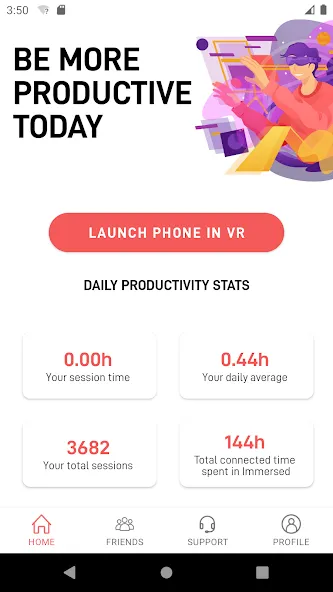
Immersed transforms your Android device into a focused remote workspace, combining virtual displays, easy pairing, and productivity tools to help users concentrate and collaborate. It’s designed for mobile professionals who need multi-screen setups, distraction control, and smooth device integration while working from anywhere.
Quick overview
Immersed is a productivity app that extends your workstation across Android devices, offering virtual monitors, quick window management, and remote collaboration features. The app targets freelancers, remote teams, and power users who want a portable multi-screen experience without extra hardware. It balances simplicity with enough depth to support complex workflows.
Core capabilities at a glance
- Virtual displays: Create multiple virtual screens that mirror or extend your main desktop, letting you keep reference material, chat windows, and documents visible at once.
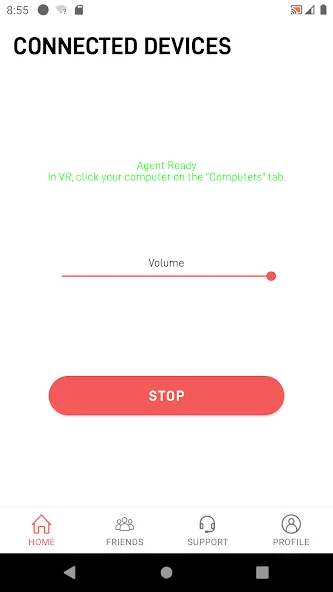
- Device pairing: Connect an Android phone or tablet to a host computer via Wi-Fi or USB for low-latency streaming and seamless input handling.
- Focus tools: Built-in modes help reduce distractions by muting notifications, dimming backgrounds, or locking peripheral apps while you work.
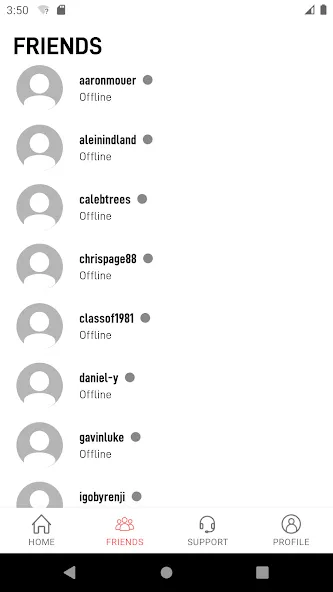
- Collaboration: Share a workspace with colleagues for pair programming, design reviews, or presentations with synchronized cursors and simple session controls.
How it works
The app uses a lightweight host-client model: install a companion program on your main PC or Mac and pair it with Immersed on Android. Once paired, your device can act as an additional monitor or an independent workspace. Screen streaming is optimized to reduce lag, while touch and keyboard input are translated back to the host machine for accurate control.
Practical workflow examples
Writers can keep research documents visible on a second virtual screen while drafting. Developers can run a terminal on one display and a code editor on another. Designers can place reference images next to editing tools. These setups reduce context switching and keep essential tools within view.
Interface and performance
Immersed uses a clean, minimal interface that prioritizes content over chrome. Settings are grouped into pairing, display, and behavior categories so users can quickly adjust resolution, frame rate, and touch sensitivity. Performance scales with network quality: on a strong Wi-Fi network or wired connection, the experience is near-native; under constrained conditions, adaptive compression preserves usability.
Customization options
- Layout presets: Save commonly used screen arrangements and restore them with a tap.
- Resolution and scaling: Adjust resolution to balance clarity and bandwidth.
- Input mapping: Remap virtual keyboard shortcuts and pointer gestures to fit your workflow.
User experience and reliability
The app emphasizes predictability. Sessions resume quickly after reconnecting, and session logs help diagnose connectivity issues. Notifications and permissions are handled transparently so Android security prompts don’t interrupt a productive session. Regular updates refine latency handling and expand compatibility with different host systems.
Who benefits most
Mobile-first professionals who frequently switch work locations will appreciate Immersed. It’s particularly useful for people who travel with a tablet and need a consistent desktop-like environment. Teams that require quick collaborative reviews will also find the session-sharing tools efficient for ad-hoc meetings.
Practical tips for new users
- Start with a wired connection: For the cleanest initial setup, pair via USB and confirm everything works before switching to Wi-Fi.
- Choose resolution carefully: Lower resolutions improve responsiveness on slower networks without disrupting the layout.
- Use layout presets: Create different presets for writing, coding, and meetings to switch contexts quickly.
- Limit background apps: Close bandwidth-heavy apps on both devices to reduce latency and improve streaming quality.
Installation and first steps
Download Immersed from the Play Store, then install the companion app on your host computer. Follow the pairing wizard to connect devices, pick a display mode, and pick a layout. Spend a few minutes customizing input and resolution settings to match your typical work environment. Once configured, saving a preset will streamline future sessions.
With a small learning curve, Immersed becomes a reliable extension of a desktop setup, offering practical productivity gains without extra monitors. Users who prioritize flexibility and mobility will find it a useful addition to their toolset.
Show More
Information
Screenshots
Latest Update










Latest News
-
![Revealing the Launch Playlists and Cross-Progression for COD Warzone Mobile News]()
-
![March 2024 Free Redemption Codes for Honkai: Star Rail News]()
-
PUBG Mobile Teams Up with Bentley Motors: Luxury Cars, Exclusive Collectibles, and Beyond 2024-04-18
![PUBG Mobile Teams Up with Bentley Motors: Luxury Cars, Exclusive Collectibles, and Beyond News]()
-
![Monster Never Cry is now accessible on both Android and iOS mobile devices. News]()
-
V2.2 of the Farlight 84 update introduces an overhauled Season structure, fresh in-game currency, an 2024-04-16
![V2.2 of the Farlight 84 update introduces an overhauled Season structure, fresh in-game currency, an News]()
-
![Arrival of Genshin Impact 4.6 Update: 'Embers of Two Realms, Twilight of Crimson' News]()
-
April 2024 Clash of Clans Update: Unveiling a Fresh Companion, Enhanced Levels, Chat Tagging, and Be 2024-04-16
![April 2024 Clash of Clans Update: Unveiling a Fresh Companion, Enhanced Levels, Chat Tagging, and Be News]()