OneUI 9.5: Dark Icon Pack
Version:1.1
Published:2026-11-08
Introduction
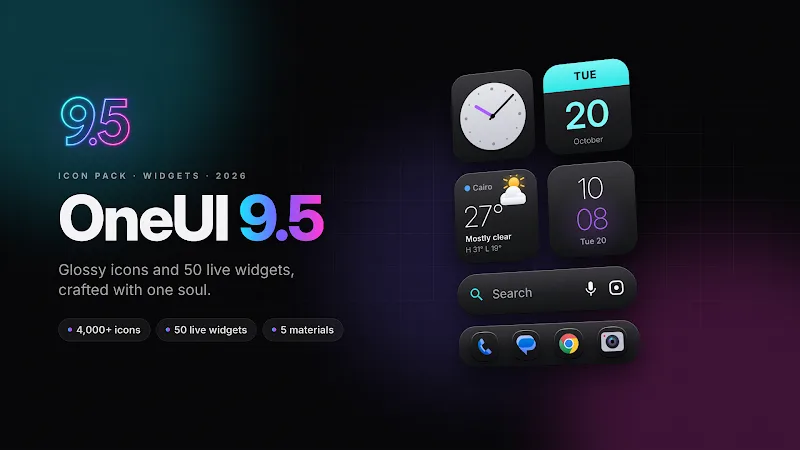
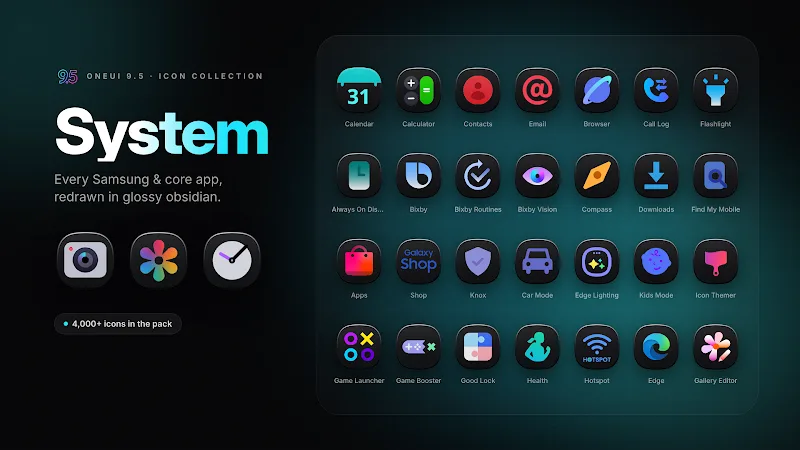
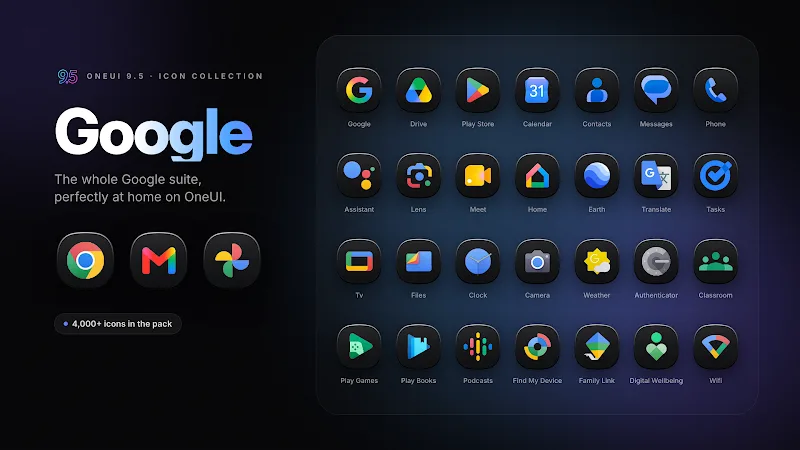
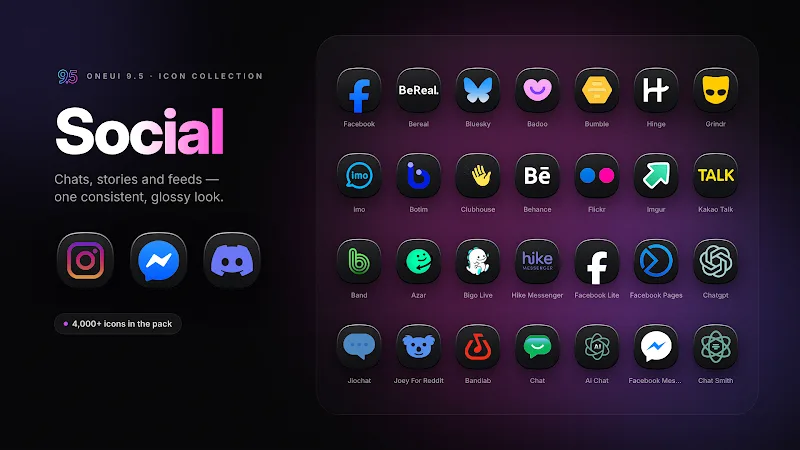
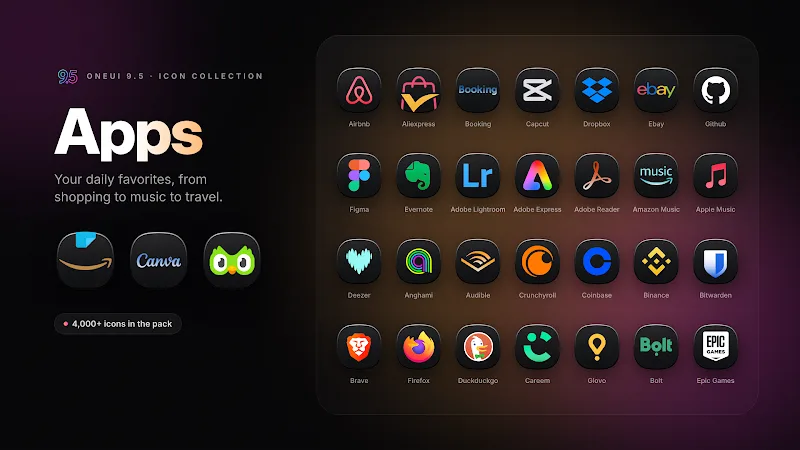
Apply - then refine, OneUI 9.5: Dark Icon Pack gives your Android home screen a polished, consistent dark look that feels like a native theme upgrade. This icon pack focuses on muted tones, simplified glyphs and rounded shapes so your apps sit comfortably against dark wallpapers and system night modes. Whether you're tailoring a minimalist layout or switching to dark mode after sunset, OneUI 9.5: Dark Icon Pack aims to make icons cohesive across launchers and folders while keeping visual noise to a minimum.
Getting Started with OneUI 9.5: Dark Icon Pack
Install and open: After installing the APK, launch the icon pack app to browse previews and access the apply menu.
Choose a compatible launcher: Most icon packs require a third-party launcher such as Nova, Lawnchair or similar; check the list inside the app and select the launcher you use.
Apply and refresh: Use the app's apply option to push the icons to your launcher, then refresh your home screen or reapply the theme if some icons don't update immediately.
Restore originals: If you want the original icons back, use your launcher’s icon settings or uninstall the pack; keeping a backup layout before major changes is a safe step.
Features of OneUI 9.5: Dark Icon Pack
Unified dark palette: The pack uses a restrained color range so icons feel consistent on dark backgrounds, reducing contrast spikes between apps.
Minimal glyph design: Icons often favour simple, recognizable silhouettes over busy artwork to improve legibility at smaller sizes.
High-resolution assets: Icons are provided in high DPI so they stay crisp on modern screens and when you resize grid and icon scale.
Adaptive-friendly shapes: Many entries are designed to match rounded or squircle masks used by popular launchers, helping to keep a cohesive grid.
Regular updates: Expect periodic additions and fixes so newly installed apps receive matching icons over time.
Tips and Tricks
Pair with a dark wallpaper: For the cleanest look, choose a low-contrast dark wallpaper—this makes the muted icons feel intentional rather than washed out.
Customize selectively: If a particular app’s icon isn’t ideal, most launchers let you change single icons manually; use that to preserve brand clarity for essential apps.
Use folders and widgets carefully: Group similar apps into themed folders and apply matching widget styles so the overall home screen maintains its minimalist rhythm.
FAQs about OneUI 9.5: Dark Icon Pack
Do I need a special launcher to use this icon pack?
Yes. Icon packs generally rely on launcher support to apply icons. Check the app's compatibility list and use a supported launcher for full functionality.
Will these icons change my widgets or system UI?
No. Icon packs typically replace app icons only. Widgets and system UI elements remain controlled by your launcher or the system theme.
Can I request an icon for an app that isn't covered?
Many developers accept icon requests via an email or a request feature inside the app; look for a request option and include the app name and a screenshot.
Conclusion:
OneUI 9.5: Dark Icon Pack provides a streamlined option for anyone who prefers a low-contrast, uniform icon set on Android. It’s practical when you're setting up a new device or refining a nighttime-friendly layout, and works well with popular launchers. Keep in mind that launcher compatibility determines how smoothly icons apply, and some manual tweaks may be necessary for rare apps. The pack is a useful visual upgrade, with feature availability and icon coverage subject to future updates.
Show More
Information
Screenshots
Latest Update








Latest News
-
![Revealing the Launch Playlists and Cross-Progression for COD Warzone Mobile News]()
-
![March 2024 Free Redemption Codes for Honkai: Star Rail News]()
-
PUBG Mobile Teams Up with Bentley Motors: Luxury Cars, Exclusive Collectibles, and Beyond 2024-04-18
![PUBG Mobile Teams Up with Bentley Motors: Luxury Cars, Exclusive Collectibles, and Beyond News]()
-
![Monster Never Cry is now accessible on both Android and iOS mobile devices. News]()
-
V2.2 of the Farlight 84 update introduces an overhauled Season structure, fresh in-game currency, an 2024-04-16
![V2.2 of the Farlight 84 update introduces an overhauled Season structure, fresh in-game currency, an News]()
-
![Arrival of Genshin Impact 4.6 Update: 'Embers of Two Realms, Twilight of Crimson' News]()
-
April 2024 Clash of Clans Update: Unveiling a Fresh Companion, Enhanced Levels, Chat Tagging, and Be 2024-04-16
![April 2024 Clash of Clans Update: Unveiling a Fresh Companion, Enhanced Levels, Chat Tagging, and Be News]()