

WiFi Pro FTP Server
Version:2.2.1
Published:2026-11-01
Introduction
WiFi Pro FTP Server turns your Android phone or tablet into a compact, full-featured FTP and FTPS host so you can move photos, documents and device backups across a local network without cables. The app provides a clear server interface that works over Wi‑Fi or a mobile hotspot, and the first-run setup guides you through choosing a port, enabling TLS/SSL encryption and creating user accounts so transfers stay private and controlled.
What the app does
At its core, WiFi Pro FTP Server runs an FTP service on your device so other computers and mobile devices can connect and browse specified folders. You can expose a single mount point or allow access to selected directories, and the server supports both anonymous and authenticated sessions depending on how you configure accounts. Because it supports FTPS, file traffic can be encrypted to reduce the risk of eavesdropping on shared wireless networks.
Interface and controls
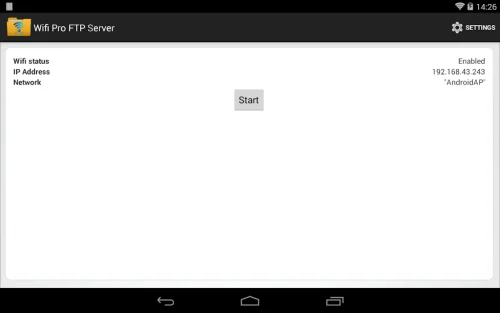
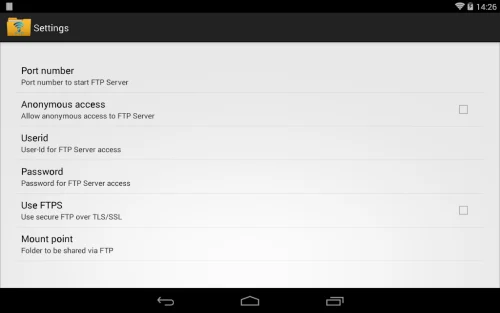
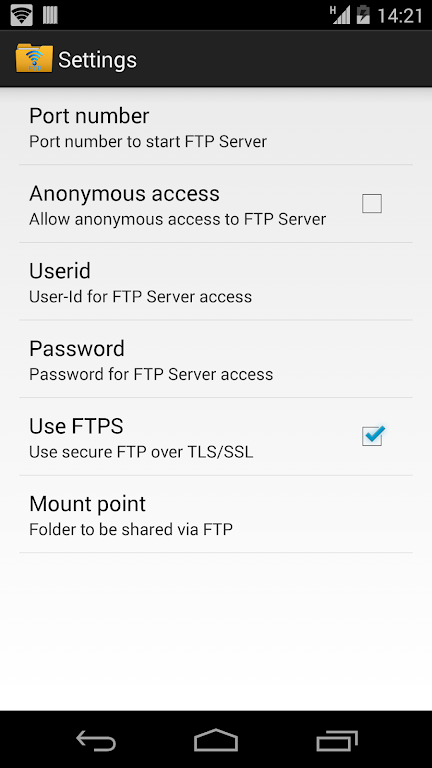
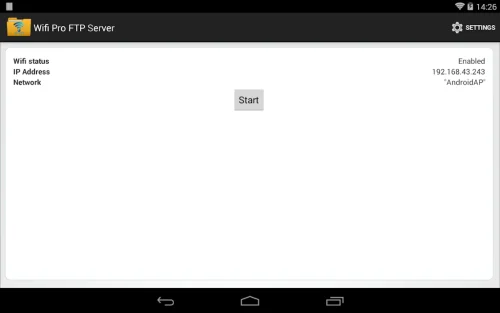
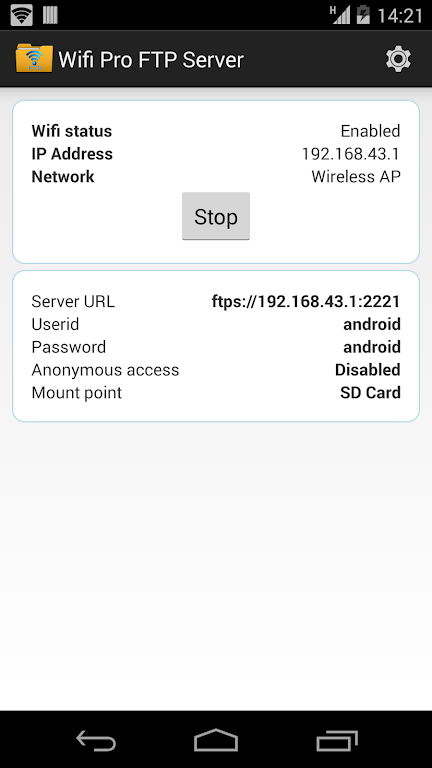
The user interface focuses on quick setup and visibility: start and stop controls are available on the main screen, current connection details (IP address and active port) are shown clearly, and account management is handled through simple form dialogs. Controls include toggles for anonymous access, switches for FTPS, and fields to add usernames, passwords and home folder paths. These controls mirror standard FTP concepts so users familiar with desktop servers will find the layout intuitive while newcomers can follow the on-screen hints.
Security and privacy
Security is central to the design: TLS/SSL can be turned on for encrypted sessions, and password-protected accounts restrict access to only authorized users. The app also allows administrators to limit each account's home folder, preventing users from browsing system directories. If you need remote access across the internet, the documentation explains the additional steps required—such as port forwarding on your router and strong credentials—but the default behavior keeps the server local to your network for safety.
Configuration and progression
Configuration is incremental and persistent so you can evolve the server setup over time. Start with a basic anonymous share for quick transfers, then add named accounts, assign dedicated home folders and enable FTPS when you want encryption. Settings are saved between sessions, and logs of recent connections help you track activity. This progression lets casual users begin with the simplest setup while power users can refine access rules and port numbers to fit more complex network environments.
Use cases and workflow
Common workflows include transferring photos from a phone to a laptop, copying large media files without cloud upload delays, and creating on-device backups that can be pulled from a desktop. The app is also useful when sharing files across devices on a temporary hotspot; create one or two user accounts, share the connection details, perform the transfer, and then stop the server to close access. Because it runs locally, performance is limited only by your Wi‑Fi speed and the device's storage throughput.
Customization and visual style
Design choices prioritize clarity and legibility: the visual style uses readable fonts and high-contrast elements to make status indicators obvious at a glance. You can customize the default port and choose whether to present connection information prominently on the main screen. The app avoids unnecessary visual clutter so important items like running status, active clients and encryption state remain easy to find and interpret.
Accessibility and offline use
The server operates without requiring an internet connection, relying instead on local Wi‑Fi or a hotspot. This allows offline transfers in environments where cellular data is limited or unavailable. Accessibility considerations include clear labels for controls and straightforward prompts; screen-reader compatible text and adjustable display scaling depend on the device’s system settings and make the app usable across a range of hardware.
Troubleshooting and support
If connections fail, the app provides diagnostic hints: confirm that the device IP and chosen port are visible to the client machine, check firewall rules on connecting devices, and ensure TLS is configured correctly when FTPS is enabled. The built-in logs and status readouts provide the primary troubleshooting information, and recommended best practices are included to help users secure their server while maintaining reliable transfers.
Who benefits
WiFi Pro FTP Server is aimed at anyone who needs straightforward, cable-free file access on Android—photographers moving large image sets, users managing backups, or anyone who prefers local transfers to cloud uploads. Its blend of simple controls, persistent configuration and optional encryption makes it a practical utility for both occasional transfers and ongoing device-to-device file management within home or small business networks.
Show More
Information
Screenshots

Latest Update












Hot Tags
Latest News
-
![Revealing the Launch Playlists and Cross-Progression for COD Warzone Mobile News]()
-
![March 2024 Free Redemption Codes for Honkai: Star Rail News]()
-
PUBG Mobile Teams Up with Bentley Motors: Luxury Cars, Exclusive Collectibles, and Beyond 2024-04-18
![PUBG Mobile Teams Up with Bentley Motors: Luxury Cars, Exclusive Collectibles, and Beyond News]()
-
![Monster Never Cry is now accessible on both Android and iOS mobile devices. News]()
-
V2.2 of the Farlight 84 update introduces an overhauled Season structure, fresh in-game currency, an 2024-04-16
![V2.2 of the Farlight 84 update introduces an overhauled Season structure, fresh in-game currency, an News]()
-
![Arrival of Genshin Impact 4.6 Update: 'Embers of Two Realms, Twilight of Crimson' News]()
-
April 2024 Clash of Clans Update: Unveiling a Fresh Companion, Enhanced Levels, Chat Tagging, and Be 2024-04-16
![April 2024 Clash of Clans Update: Unveiling a Fresh Companion, Enhanced Levels, Chat Tagging, and Be News]()