
Canon Camera Connect
Version:3.6.11.7
Published:2026-11-20
Introduction
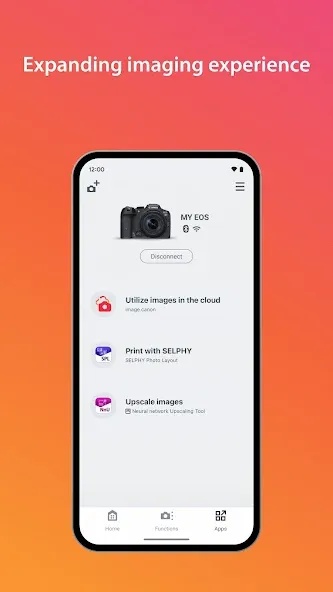
Canon Camera Connect is a mobile companion that links your Canon camera to your Android device for remote shooting, image transfer, and quick sharing. The app streamlines camera controls, previews shots on your phone, and moves photos wirelessly, making field workflows faster for hobbyists and professionals alike.
Key tools and capabilities
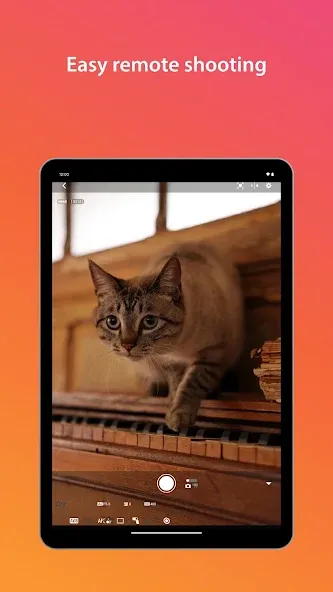
At its core, Canon Camera Connect offers remote live view with intuitive touch controls, allowing users to frame, focus, and trigger the shutter from a handheld device. The app supports image browsing and selective transfer, so you can pick individual photos or batches to move to your phone. It also maintains metadata and thumbnail previews for efficient sorting and selection.
User interface and workflow
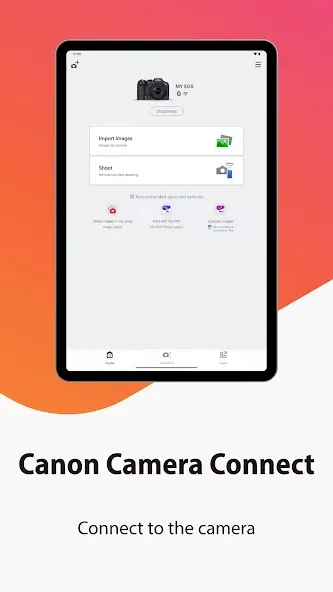
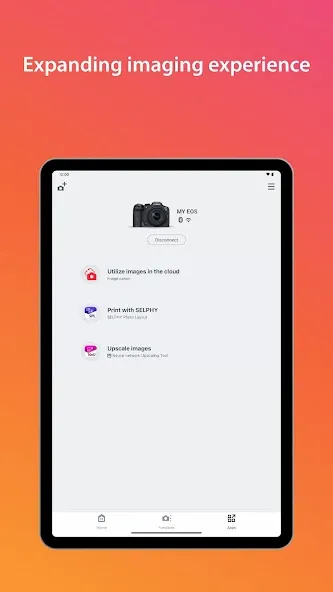
The interface emphasizes clarity: large preview windows, accessible focus and exposure controls, and straightforward connection status indicators. Pairing a camera usually involves Wi‑Fi or Bluetooth setup, after which the app preserves connection preferences for faster reconnection. For photographers working on location, the workflow reduces the need to carry cables or a laptop, enabling immediate review and delivery.
Remote shooting features
Remote shooting in Canon Camera Connect replicates many in-camera controls on your mobile screen. Users can switch shooting modes, adjust exposure parameters, set autofocus points via touch, and capture single or continuous shots. Some camera models also permit live histogram and grid overlays in the preview, helping with composition and exposure assessment before taking the picture.
Image management and transfer
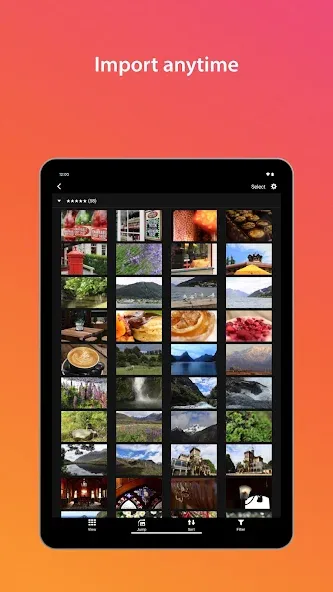
Transferring photos is practical and selective. You can browse the camera’s memory, view thumbnails, and mark images for download. Files are saved to your device storage with preserved timestamps and basic metadata. For larger RAW files, the app prioritizes JPEG previews and may offer smaller transfers for speed, while full-size RAW files can be downloaded when needed.
Compatibility and performance
Canon Camera Connect supports a wide range of Canon mirrorless and DSLR models, though specific features depend on the camera firmware and hardware. Connection quality varies by phone model and environment; Bluetooth offers quick pairing while Wi‑Fi provides higher transfer speeds and full remote control functionality. Performance is typically smooth on modern devices, though transfers of high-resolution files will take longer and benefit from a stable wireless environment.
Creative and practical use cases
- Event photographers can send client selects immediately after a shoot for rapid review.
- Landscape shooters can preview compositions on a tablet or phone placed on a tripod for precise framing.
- Macro photographers benefit from remote focus control to avoid camera shake when capturing delicate subjects.
- Content creators and vloggers can monitor framing while recording, enabling more polished mobile workflows.
Customization and settings
Within the app, users can customize image resolution for transfers, choose download folders, and manage auto-download settings. Notification preferences allow the device to alert when new photos are available on the camera. Additionally, firmware update notifications appear when a connected camera has updates available, simplifying maintenance tasks.
Tips for reliable connections
To get the most consistent experience with Canon Camera Connect, keep camera firmware and app versions up to date, minimize wireless interference, and use Bluetooth for quick pairing followed by Wi‑Fi for intensive operations. When transferring many high-resolution files, connect to power sources on both camera and phone to prevent interruptions caused by battery drain.
Security and privacy considerations
The app establishes local wireless connections between your camera and device; it does not require cloud upload for basic transfer and remote control functions. Review in-app permissions and only allow storage and location access as needed. For public shoots, consider temporary network names and passwords to limit unauthorized access.
Getting started
Begin by installing Canon Camera Connect from the Play Store, enable Wi‑Fi or Bluetooth on both devices, and follow the on-screen pairing prompts. Once connected, explore live view, try a selective image transfer, and review settings to tailor the app to your workflow. With a few quick steps you can integrate your mobile device into your capture and delivery process.
Canon Camera Connect is designed to bring camera control and image handling into the palm of your hand, simplifying everyday photography tasks and accelerating post-shoot workflows for a wide range of users.
Show More
Information
Screenshots
Latest Update











Hot Tags
Latest News
-
![Revealing the Launch Playlists and Cross-Progression for COD Warzone Mobile News]()
-
![March 2024 Free Redemption Codes for Honkai: Star Rail News]()
-
PUBG Mobile Teams Up with Bentley Motors: Luxury Cars, Exclusive Collectibles, and Beyond 2024-04-18
![PUBG Mobile Teams Up with Bentley Motors: Luxury Cars, Exclusive Collectibles, and Beyond News]()
-
![Monster Never Cry is now accessible on both Android and iOS mobile devices. News]()
-
V2.2 of the Farlight 84 update introduces an overhauled Season structure, fresh in-game currency, an 2024-04-16
![V2.2 of the Farlight 84 update introduces an overhauled Season structure, fresh in-game currency, an News]()
-
![Arrival of Genshin Impact 4.6 Update: 'Embers of Two Realms, Twilight of Crimson' News]()
-
April 2024 Clash of Clans Update: Unveiling a Fresh Companion, Enhanced Levels, Chat Tagging, and Be 2024-04-16
![April 2024 Clash of Clans Update: Unveiling a Fresh Companion, Enhanced Levels, Chat Tagging, and Be News]()