
TVCast
Version:3.7.1
Published:2026-10-15
Introduction
TVCast brings live television streams to your phone, smart TV or computer, giving you a lightweight client to play channels from your own sources. TVCast makes it easy to open .m3u and .m3u8 playlists, view schedule data from EPG files and cast what you watch to larger screens without bundling any built-in channel packages. This concise introduction explains how TVCast organizes streams, what to expect during setup, and how the app behaves across devices.
Overview
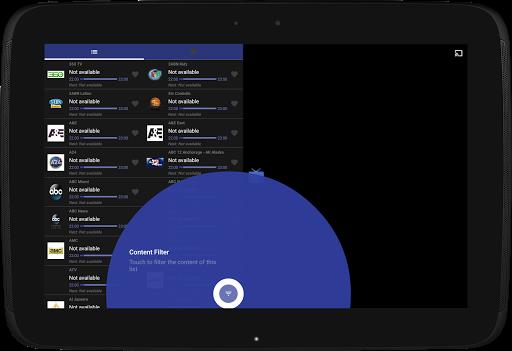
TVCast is designed as a flexible player rather than a content provider: you add playlists or provider links and the app handles playback and scheduling. The interface favors clarity and speed, presenting channel lists and program information drawn directly from the playlist and associated EPG files. Common uses include loading a provider-supplied playlist, subscribing to public IPTV lists, or using a personal collection of HLS streams for convenient multi-screen viewing.
Playback and controls
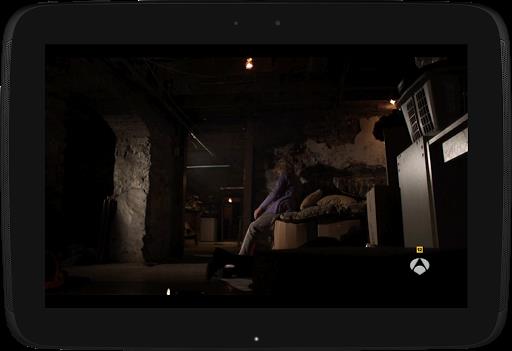
The player offers standard playback controls such as play, pause and seek, and integrates with device volume and screen orientation. On mobile devices you use touch gestures for basic navigation; when casting or using the web player you control playback with the remote or the browser’s built-in controls. The app is optimized to respect the transport formats in your playlist, so .m3u8 (HLS) streams are handled in ways compatible with many streaming devices and browsers.
Playlist and EPG support
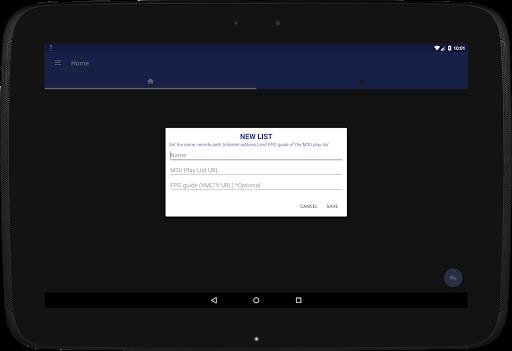
TVCast supports both .m3u and .m3u8 playlists and can import EPG guide files to show program titles, start times and descriptions where available. Importing a playlist is straightforward: point the app to a URL or local file and it will parse channel entries, stream URLs and group labels. When an EPG is provided alongside a playlist, programs are aligned to channels so you can scan upcoming schedules and quickly jump to on-air content.
Casting and multi-screen use
The app includes a built-in web player for use on PCs and laptops and offers casting to common streaming devices and smart TVs. Casting is initiated from the device running the app and transfers playback to a larger screen while maintaining control from your phone or browser. This approach makes it simple to watch a single live stream on a television while using the mobile device as a remote or to open the web player on a laptop for browser-based viewing without extra software.
Organization and customization
Because TVCast relies on external playlists, organization depends largely on how channels and groups are defined in those files. The app preserves categories and group names from the playlist and presents them as channel lists you can navigate quickly. In practice this means you can rely on your provider’s grouping or use curated public playlists that include category tags, making channel browsing predictable and fast without heavy client-side bloat.
User experience and accessibility
Performance is intentionally lightweight: TVCast avoids bundled channel libraries and focuses on smooth playback and fast parsing of playlist data. The user interface is kept simple so navigation works well on small and large screens; when used with a smart TV or casting device the app behaves like a typical media client and responds to remotes and keyboard input in the web player. Because the app uses standard playlist formats and EPG metadata, assistive technologies that can read text and structured metadata are better able to present schedules and descriptions.
Limitations and requirements
Note that TVCast does not provide channels or streaming sources by itself. Playback quality, channel availability and program details depend entirely on the external playlists and EPG files you add. Some streams may be geo-restricted or require authentication from the original provider. For best results use well-formed .m3u/.m3u8 files and reliable EPG sources, and ensure you have the legal rights to view the streams you load into the app.
Getting started
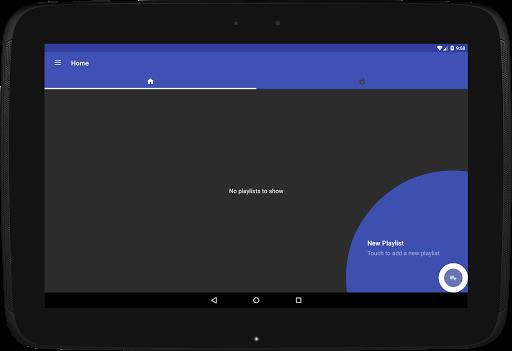
To begin, obtain a valid .m3u or .m3u8 playlist or a URL from your content provider, open TVCast and add the playlist through the built-in import option, then load an EPG file if you want program listings. Use the web player to preview streams on a laptop and cast from your phone to a TV for larger viewing. If a stream fails to play, check the playlist entry and try another source; because TVCast is a client, switching playlists is the normal way to improve channel selection or reliability.
Show More
Information
Screenshots
Latest Update










Hot Tags
Latest News
-
![Revealing the Launch Playlists and Cross-Progression for COD Warzone Mobile News]()
-
![March 2024 Free Redemption Codes for Honkai: Star Rail News]()
-
PUBG Mobile Teams Up with Bentley Motors: Luxury Cars, Exclusive Collectibles, and Beyond 2024-04-18
![PUBG Mobile Teams Up with Bentley Motors: Luxury Cars, Exclusive Collectibles, and Beyond News]()
-
![Monster Never Cry is now accessible on both Android and iOS mobile devices. News]()
-
V2.2 of the Farlight 84 update introduces an overhauled Season structure, fresh in-game currency, an 2024-04-16
![V2.2 of the Farlight 84 update introduces an overhauled Season structure, fresh in-game currency, an News]()
-
![Arrival of Genshin Impact 4.6 Update: 'Embers of Two Realms, Twilight of Crimson' News]()
-
April 2024 Clash of Clans Update: Unveiling a Fresh Companion, Enhanced Levels, Chat Tagging, and Be 2024-04-16
![April 2024 Clash of Clans Update: Unveiling a Fresh Companion, Enhanced Levels, Chat Tagging, and Be News]()