
Magnifier Vision
Version:2.17.4
Published:2026-10-21
Introduction
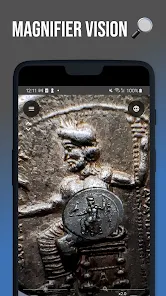
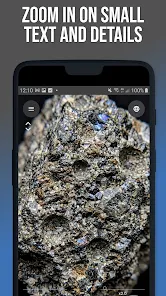
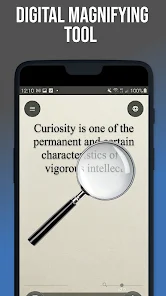
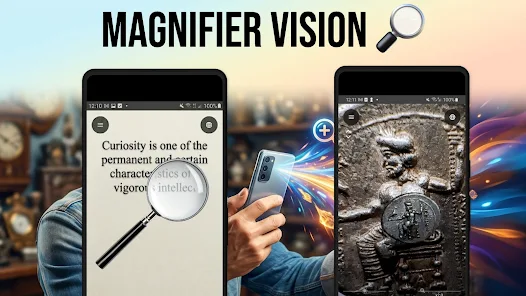
Magnifier Vision turns your phone into a compact digital magnifier, making it easier to read tiny print and inspect fine details without carrying extra equipment. The app uses your device camera to provide smooth zooming and a built-in light, so you can zoom in on menus, labels, receipts, serial numbers or small components and then freeze and capture what you see. Magnifier Vision is designed for quick, practical use: a clear layout and large on-screen controls help you operate the app one-handed while you focus on the task at hand.
Key features
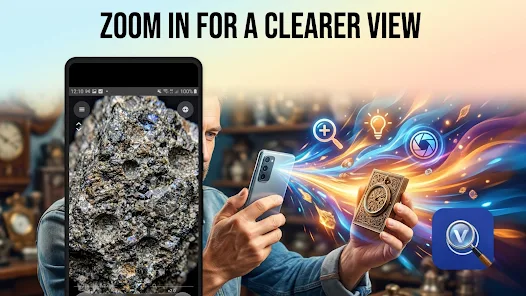
This magnifier app combines adjustable magnification, lighting control and simple image capture. Adjustable zoom levels let you fine-tune magnification for different tasks and the app supports intuitive gestures and on-screen sliders to change magnification smoothly. The integrated flashlight (torch) improves visibility when ambient light is low, and the freeze-frame capture lets you stop a live view to inspect details closely. Captured images can be saved locally for later reference or shared through your device’s standard sharing options. The interface emphasizes clarity with large buttons and straightforward labels so that commonly used tools are easy to find and use.
Controls and camera behavior
Magnifier Vision offers familiar camera-style controls that most users will recognize: pinch-to-zoom and on-screen zoom controls, a single tap to lock focus in many cases, and a dedicated freeze button to hold an image steady while you examine it. The app works with your phone’s camera focus and exposure features, and it provides manual adjustment options where supported by the device hardware. This makes it possible to get a sharper view of fine print or textured surfaces without having to press the shutter repeatedly. Because the app is optimized for quick tasks, common controls are placed within easy reach and the layout avoids clutter that can get in the way during one-handed use.
Customization and accessibility
Magnifier Vision includes options to adapt the tool to individual needs. Large control elements and high-contrast interface choices improve usability for people with reduced vision, and adjustable zoom increments help users find the most comfortable magnification. You can tweak display brightness and, on supported devices, control exposure to make details clearer. These accessibility-minded options aim to make routine tasks—like reading small labels or checking serial numbers—more manageable for a wide range of users.
Use cases and daily value
The app is useful in many everyday situations: reading restaurant menus in dim lighting, examining medication labels, verifying small printed codes, checking model or craft details, and inspecting tiny components during repairs. Because captured images are saved locally, Magnifier Vision becomes a quick reference tool when you need to preserve a close-up for later comparison or to share with someone else for advice. Its lightweight design means it’s handy for travel, shopping, workshops, or any scenario where a portable visual aid is preferable to carrying a separate magnifier.
Performance, offline operation and privacy
Magnifier Vision runs using your device’s camera and local storage, so core magnification and capture functions work offline without relying on a network connection. Captured images are stored on your device and you control when to share them using the system share dialog. Because the app focuses on camera-based viewing and local image saving, it can operate as a straightforward, privacy-conscious visual aid for tasks where online features are not required.
Limitations and practical tips
Image clarity depends on your phone camera’s resolution, optical quality and focus range; higher-resolution cameras generally provide better results at extreme zoom. Very low-light situations can remain challenging despite the flashlight, and extended use of camera and torch may increase battery drain. For very steady high-magnification viewing, resting your device on a stable surface or using a small tripod will reduce blur. Keep the lens clean and experiment with the app’s exposure or focus options if details look soft—the combination of proper lighting and a steady hold makes the biggest difference.
Show More
Information
Screenshots



Latest Update
-
![Lines Gold Pro - Icon Pack APK]()
Lines Gold Pro - Icon Pack
-
![Remote Fire TV APK]()
Remote Fire TV
-
![Flight Dark Pro - Icon Pack APK]()
Flight Dark Pro - Icon Pack
-
![Ares Light: Pastel Icon Pack APK]()
Ares Light: Pastel Icon Pack
-
![getConf - Hidden Settings APK]()
getConf - Hidden Settings
-
![Dots Live Wallpaper - Battery APK]()
Dots Live Wallpaper - Battery
-
![Chroma - Icon Pack APK]()
Chroma - Icon Pack
-
![One UI Fluffy Icon Pack APK]()
One UI Fluffy Icon Pack
-
![Pixly Limitless Fluo Icon Pack APK]()
Pixly Limitless Fluo Icon Pack
-
![Compress Video - Resize Video APK]()
Compress Video - Resize Video
-
![Pixly Professional Dark APK]()
Pixly Professional Dark
-
![Tracker Detect Pro APK]()
Tracker Detect Pro









Latest News
-
![Revealing the Launch Playlists and Cross-Progression for COD Warzone Mobile News]()
-
![March 2024 Free Redemption Codes for Honkai: Star Rail News]()
-
PUBG Mobile Teams Up with Bentley Motors: Luxury Cars, Exclusive Collectibles, and Beyond 2024-04-18
![PUBG Mobile Teams Up with Bentley Motors: Luxury Cars, Exclusive Collectibles, and Beyond News]()
-
![Monster Never Cry is now accessible on both Android and iOS mobile devices. News]()
-
V2.2 of the Farlight 84 update introduces an overhauled Season structure, fresh in-game currency, an 2024-04-16
![V2.2 of the Farlight 84 update introduces an overhauled Season structure, fresh in-game currency, an News]()
-
![Arrival of Genshin Impact 4.6 Update: 'Embers of Two Realms, Twilight of Crimson' News]()
-
April 2024 Clash of Clans Update: Unveiling a Fresh Companion, Enhanced Levels, Chat Tagging, and Be 2024-04-16
![April 2024 Clash of Clans Update: Unveiling a Fresh Companion, Enhanced Levels, Chat Tagging, and Be News]()